
Adjusting Your Mobile Settings for Optimal Gaming on Budget Phones
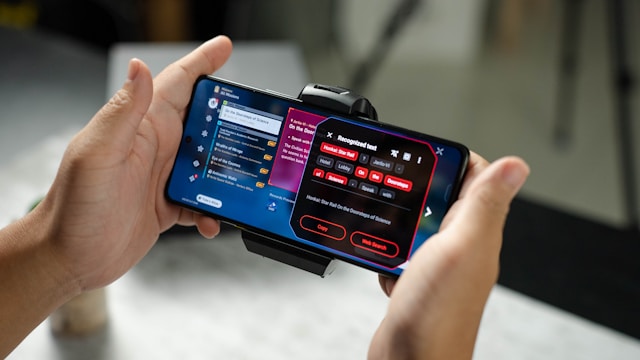
Optimizing Graphics Settings for Better Performance
Mobile gaming can be a delightful experience, even on budget phones. However, the hardware limitations of such devices mean that default settings might not always offer the best performance. Optimizing graphics settings is one of the most significant adjustments you can make to enhance your gaming experience.
Lowering Resolution and Texture Quality
Most games automatically detect your phone's capabilities and adjust settings accordingly, but these are often set to balance between quality and performance. You can manually tweak these settings:
- Resolution: Decrease the resolution from high to medium or low. This reduces the workload on your phone's GPU.
- Texture Quality: Lower the texture quality. High-resolution textures can consume a lot of memory and processing power.
For example, in a game like PUBG Mobile, navigate to the settings menu and find the graphics section. Choose a lower resolution and set texture quality to medium for smoother gameplay.
Disabling Shadows and Post-Processing Effects
Shadows and post-processing effects, such as bloom or motion blur, can significantly impact performance. Turning these off will lead to a noticeable boost in frame rates.
Most games offer an option to disable shadows. For instance, in Call of Duty: Mobile, go to the graphics settings and switch off shadows and any post-processing effects available.
Managing Background Processes
Even when you are gaming, other apps on your phone may be running processes that consume resources. Managing these background processes is crucial to ensure that your game gets as much processing power as possible.
Closing Unnecessary Apps
Before starting a gaming session, close all unnecessary apps running in the background. This includes social media apps, browsers, or any app that isn’t needed for gaming. Android users can use the built-in app switcher to swipe away unneeded apps.
Using Game Boosting Apps
Many manufacturers provide game booster software that optimizes the device for gaming by closing background apps, blocking notifications, and prioritizing network data for the game. If your phone doesn’t come with such software pre-installed, consider downloading a reliable third-party app from the Google Play Store.
Configuring Device Settings
Beyond in-game settings, your device’s settings also play a vital role in optimizing gaming performance.
Adjusting Power Settings
Power saving modes are useful for extending battery life but can throttle CPU performance to do so. Ensure that your phone is set to a performance mode when gaming:
- Go to Settings > Battery, and disable any power-saving features.
- If available, switch to a high-performance mode.
Tweaking Developer Options
Android phones have hidden developer options that can improve gaming performance:
- First, enable Developer Options by going to Settings > About Phone > Build Number, and tap it seven times.
- In Developer Options, find Window Animation Scale, Transition Animation Scale, and Animator Duration Scale. Reduce each of these to 0.5x or off for snappier responses.
Network Optimization
A stable and fast internet connection is crucial for online mobile games.
Selecting Wi-Fi Over Mobile Data
Wi-Fi is generally more stable than mobile data connections. Make sure you’re connected to a reliable Wi-Fi network before playing online games.
Reducing Network Latency
If you're experiencing lag, try resetting your router or using an app to prioritize gaming traffic on your network. Apps like Droid Optimizer can assist by minimizing latency during gameplay.
Practical Scenario: Improving Performance in Specific Games
Consider a scenario where you're playing Fortnite Mobile, and you experience stuttering during combat scenes. Here's how you could apply the techniques discussed:
- Lower the in-game resolution and disable shadows through the graphics settings.
- Close apps like Spotify or Chrome that might be running in the background.
- Enable your phone's gaming mode or install a booster app if it's not already present.
- If possible, connect to Wi-Fi instead of using mobile data to reduce latency issues.
Conclusion: Making the Most of Your Device
While budget phones may not match the raw power of their high-end counterparts, with careful adjustment of settings both within games and at the system level, you can enjoy an enhanced gaming experience. These practical tweaks ensure that every bit of your device's capability is utilized for gaming rather than being squandered on unnecessary processes or overly ambitious graphical settings.