
Balancing Graphics Settings and CPU Tweaks for Optimal Gameplay
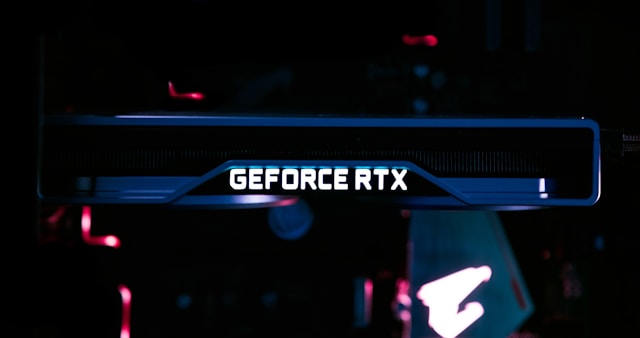
Understanding the Relationship Between Hardware and Performance
The journey to optimal gameplay performance is akin to finding the perfect balance between various components of your gaming PC. While it's tempting to max out graphics settings for the best visual experience, this often comes at the cost of performance. Understanding how each component of your setup contributes to your gaming experience is crucial.
The Role of Graphics Settings
Graphics settings in games control the visual fidelity and can dramatically impact performance. Key settings include resolution, texture quality, shadows, anti-aliasing, and more. Each of these affects the workload on your GPU differently. For instance:
- Resolution: Increasing resolution enhances clarity but significantly strains the GPU.
- Texture Quality: Higher textures improve detail but require more VRAM.
- Anti-Aliasing: Smoothens edges at the cost of higher processing power.
A common strategy is to start with medium settings, then fine-tune based on performance using built-in benchmarking tools many games offer.
CPU Tweaks: Maximizing Throughput
While GPUs often take center stage in gaming discussions, the CPU plays a vital role, especially in open-world and simulation games where AI and physics computations are intensive. Here are some ways to tweak CPU settings for better performance:
- Overclocking: Pushing your CPU beyond its base speed can yield performance gains. Tools like Intel’s XTU or AMD’s Ryzen Master allow safe overclocking.
- Core Parking: Disable core parking in Windows to ensure all CPU cores are available, reducing bottlenecks in multi-threaded games.
- Background Processes: Close unnecessary programs running in the background to free up CPU resources.
Creating a Mini-Framework for Optimal Settings
Building a personal mini-framework for adjusting settings involves three main steps: Assessment, Adjustment, and Iteration.
Assessment
Begin by assessing your current hardware capabilities. Tools like MSI Afterburner can monitor your system’s performance metrics, including frame rates, CPU usage, and GPU temperature. This baseline helps you understand which component is currently limiting performance.
Adjustment
Start with your game’s default 'High' preset and make adjustments based on your assessment:
- If the GPU is maxed out: Lower settings like shadows and anti-aliasing first.
- If the CPU is struggling: Consider dropping physics or draw distance settings.
Focus on maintaining a steady frame rate. Consistency is more important than maximum frame rate for smooth gameplay.
Iteration
The process of fine-tuning is iterative. Make small adjustments, test their impact, and repeat. Always aim for a balance where both CPU and GPU are utilized efficiently without hitting their limits constantly.
Enhancing Network Performance
Your internet connection plays a crucial role in online gaming. Network optimizations can reduce latency and prevent lag spikes.
Tweaking Router Settings
Modern routers often have QoS (Quality of Service) settings that prioritize gaming traffic over other types of data.
- Enable QoS to prioritize gaming packets.
- Use Ethernet connections over Wi-Fi whenever possible for stability.
In-Game Network Settings
Many games allow you to adjust network-related settings:
- Select servers closer to your geographical location for lower ping.
- Avoid peak times when server traffic is high to minimize lag.
Conclusion: Achieving Optimal Gameplay Balance
The path to achieving optimal gameplay on a PC involves a careful balance between hardware upgrades and intelligent software tweaks. By understanding the roles of your GPU and CPU, creating a tailored mini-framework for settings, and optimizing network configurations, you can enhance your gaming experience significantly. Always remember that technology evolves, so regularly reassess your setup as new updates or hardware improvements become available. Enjoy smoother frames and immersive gameplay!