
Effective Methods for Boosting Your PC's VR Gaming Performance
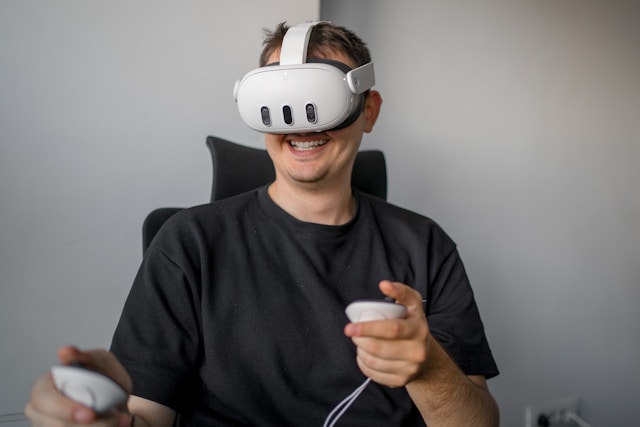
Understanding VR Gaming Performance Bottlenecks
Virtual Reality (VR) gaming demands a level of performance and immersion that goes beyond traditional gaming setups. To achieve this, it's crucial to identify and understand common performance bottlenecks that could impede your experience. These bottlenecks typically include GPU limitations, CPU bottlenecks, insufficient RAM, and outdated software drivers.
GPU Limitations
The Graphics Processing Unit (GPU) is the cornerstone of any gaming rig, especially for VR. It's responsible for rendering the immersive visuals that VR requires. A subpar GPU can result in poor frame rates and reduced graphical quality, which are critical in VR as they can lead to motion sickness.
CPU Bottlenecks
While the GPU handles graphics, the CPU is responsible for processing game logic and physics calculations. If your CPU is not up to par, it might struggle with these tasks, leading to decreased performance and gameplay lag.
Upgrading Your Hardware
Addressing hardware limitations is often the most direct way to boost your PC's VR performance. Let's look at specific hardware components you might consider upgrading.
Choosing the Right GPU
For VR gaming, it's recommended to use at least a mid-range GPU like the NVIDIA GeForce RTX 3060 or AMD Radeon RX 6700 XT. These GPUs provide a good balance of performance and price. When selecting a GPU, also consider future-proofing your setup by investing in a model that slightly exceeds current requirements, ensuring it remains viable as games become more demanding.
CPU Considerations
A multi-core processor with a high clock speed is optimal for VR gaming. Processors such as the Intel Core i7-12700K or AMD Ryzen 7 5800X are excellent choices. They handle multitasking efficiently, which is important for VR environments that require both processing power and speed.
Memory Upgrades
VR gaming can be memory-intensive, so having at least 16GB of RAM is advisable. For more demanding titles, 32GB may provide a noticeable improvement in performance, allowing smoother gameplay and quicker load times.
Software Settings for Enhanced Performance
Optimizing software settings can significantly enhance your VR experience without additional hardware costs. Let's explore key software adjustments you can make.
Driver Updates
Ensuring that your GPU drivers are up-to-date is essential. Manufacturers frequently release updates that optimize performance and fix bugs specific to VR applications. Use tools like NVIDIA GeForce Experience or AMD Radeon Software to keep drivers current.
Game Settings Optimization
Adjusting in-game settings can help balance performance and visual quality. Lowering settings such as shadows, reflections, and texture quality can improve frame rates without severely impacting the visual experience.
- Resolution Scaling: Reducing the resolution scale can have a significant impact on performance while still maintaining acceptable visual quality.
- Antialiasing: Consider reducing or disabling antialiasing. It requires considerable processing power and its visual benefits are less noticeable in VR.
SteamVR Settings
If you're using SteamVR, it provides several tools to enhance performance:
- Motion Smoothing: This feature helps maintain consistent frame rates by using previous frames to predict new frames when the GPU is under heavy load.
- Advanced Supersampling: Adjusting this setting can improve clarity but at the cost of increased GPU demand. Balancing it with your system's capabilities is key.
Implementing Effective Cooling Solutions
VR gaming pushes your PC components hard, generating significant heat which can throttle performance if not managed properly.
Airflow Optimization
Ensure your case has adequate airflow. Strategic placement of intake and exhaust fans can significantly improve cooling efficiency. Fans should be placed to create a directional flow from front-to-back or bottom-to-top within the case.
Aftermarket Cooling Options
- Air Coolers: High-quality air coolers are more affordable than liquid cooling solutions and effective for most users.
- Liquid Cooling: Provides superior cooling, which is beneficial for overclocked systems. Consider options like all-in-one (AIO) liquid coolers for easy installation.
Checklist for Optimizing VR Performance
- Update all relevant hardware drivers.
- Tweak game-specific settings in both game menus and platforms like SteamVR.
- Evaluate current cooling setup and consider enhancements if overheating occurs.
Conclusion
Enhancing your PC's VR gaming performance involves a combination of upgrading hardware components, optimizing software settings, and implementing effective cooling strategies. By understanding common bottlenecks and making strategic adjustments, you can significantly improve your VR gaming experience. Whether you're battling intergalactic foes or exploring breathtaking virtual landscapes, these optimizations will ensure smoother gameplay and heightened immersion.